
Split screen mode is one of Android's most powerful multitasking features, yet many users never discover it exists. This built-in functionality lets you run two applications side by side on your phone's screen, making it possible to watch videos while texting, take notes during video calls, or browse social media while shopping online.
Once you master split screen, you will wonder how you ever managed without it. The feature transforms your phone from a single-task device into a genuine productivity tool that can handle multiple activities simultaneously.
How to Enable Split Screen

Google Photos and Spotify running together in split screen mode.
The most common method involves using the recent apps menu. First, open the first application you want to use in split screen mode. Then, access your recent apps by swiping up from the bottom of the screen and pausing in the middle (or by tapping the recent apps button if your device has one). You will see cards representing all your open applications.
Find the app you want to use first, then tap its icon at the top of the card. A menu will appear with several options, including "Split screen." Select this option, and the app will move to the top half of your screen. Your remaining recent apps will appear in the bottom half. Tap the second app you want to use, and both will display simultaneously.
Alternative Methods

Split screen works in landscape too, with two apps running side by side.
Some Android versions support a two-finger swipe down from the top of the screen to activate split screen directly. This gesture varies by manufacturer, so you may need to experiment to see if your device supports it. On Samsung phones, you can also access split screen from the Edge Panel by swiping from the side of the screen.
Once in split screen mode, you can adjust the divider between the two apps by dragging it up or down. This lets you give more screen space to the app you need most. For example, if you are following a recipe video while typing a message, you might make the video larger. If you are comparing products on two shopping apps, you might split the screen evenly.
Practical Use Cases

Navigation and music together, a classic split screen combination.
The applications for split screen are virtually unlimited. You can watch cooking tutorials on YouTube while following the recipe in your notes app. Compare products on two different shopping websites before making a purchase. Chat with friends on WhatsApp while watching a movie on Netflix. Take notes during an online meeting on Zoom or Google Meet. Monitor your fitness app while following along with a workout video.
Students particularly benefit from this feature. You can watch educational videos while taking notes, research topics in a browser while writing papers, or reference study materials while completing online quizzes. The ability to see two sources of information simultaneously makes learning more efficient.
Pro Tips and Troubleshooting
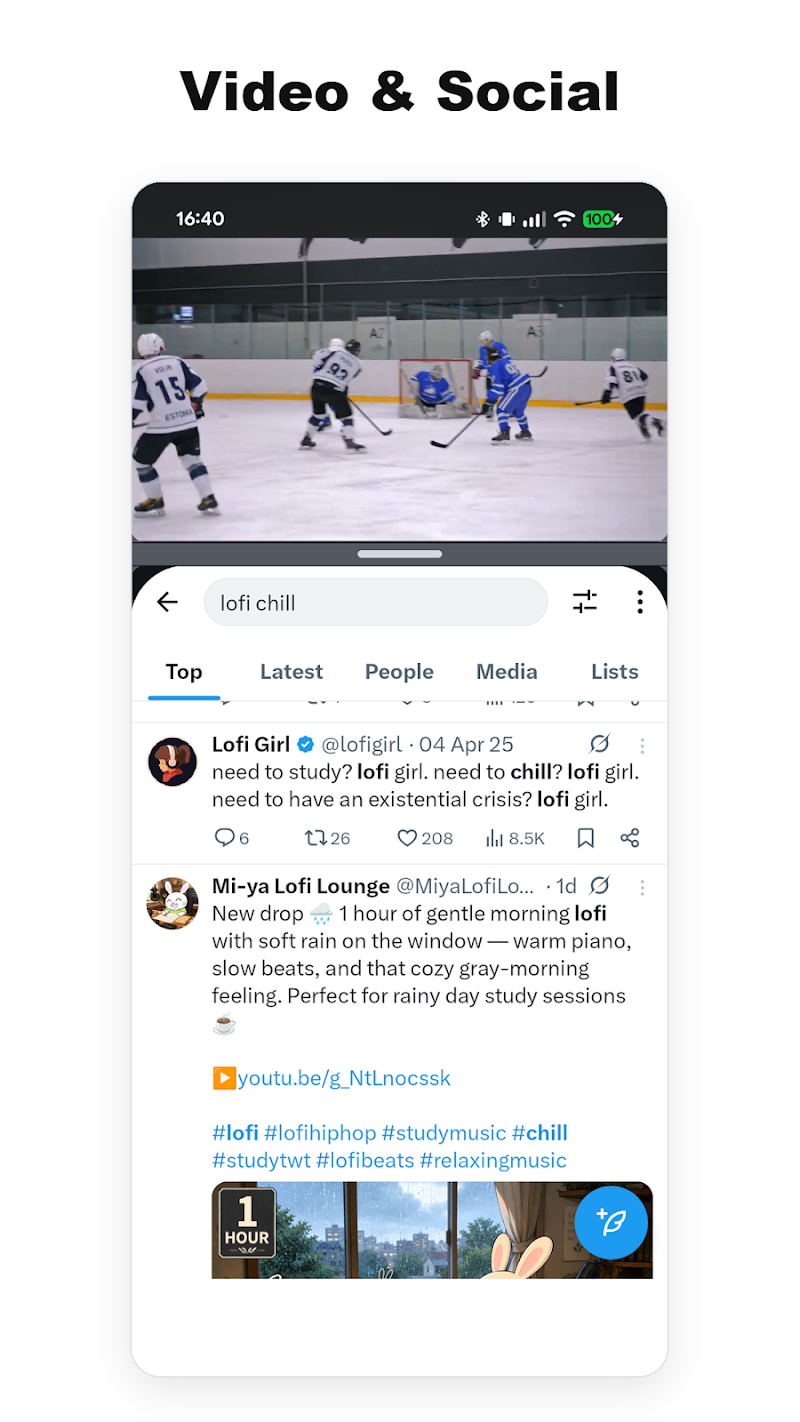
A video and a social feed sharing the screen at the same time.
Not all applications support split screen mode. If an app does not appear in the split screen selector, it may not be compatible. However, you can force enable split screen for all apps by going to Settings, then Developer options, and enabling "Force activities to be resizable." This experimental feature may cause some apps to behave unexpectedly, so use it cautiously.
On Samsung devices, you can save app pairs as shortcuts on your home screen. This lets you launch your favorite split screen combinations with a single tap, rather than setting them up each time. For example, you could create a shortcut that opens your email app alongside your calendar, or YouTube alongside your notes app.
You can also use split screen with floating windows on newer Android versions. This allows you to have one app in split screen mode while another floats on top, giving you even more flexibility for multitasking. Some manufacturers like Samsung and Xiaomi have their own enhanced multitasking features that build on Android's base split screen functionality.
What Stands Out: Split screen is a free, built-in feature that requires no additional apps or root access. It works on most Android devices running version 7.0 or later, making it accessible to virtually all modern smartphone users. The productivity gains are immediate once you start using it regularly.
Running Two Instances of the Same App
Split screen handles two different apps at once, but some people need two accounts of the same app open simultaneously, such as a personal and a work WhatsApp, or two Instagram profiles for different brands. The cleanest way to achieve this is with an app cloning tool that creates an isolated second instance of an app on your phone. One widely used free option on the Play Store is Multi App, which builds a separate virtual container for each clone so it runs independently without interfering with the original.

Multi App lets you clone a messenger, social app, or game so a second login can run at the same time.
How it works: open Multi App, pick the app you want to clone from the list (WhatsApp, Instagram, Facebook, games, and more), tap Clone, and a duplicate icon appears. Log into that copy with a different account, and both versions run side by side. The clone is kept in its own sandbox, so notifications, storage, and login data stay separate from the original.
This is especially useful for social media managers juggling client accounts, freelancers keeping work and personal messages apart, and gamers who want two profiles to claim daily rewards or progress faster. It also reduces the need to carry a second device just to manage separate logins.
Which Approach Should You Choose?
For most people, the built in split screen is all you need, and it costs nothing and requires no install. Use split screen when you want two different apps visible at the same time, for example a video alongside a notes app. Use an app cloning tool when you specifically need a second login for the same app, which split screen cannot provide on its own. Many users combine both, keeping a cloned messenger in one split screen pane and another app in the second.
Tip: If split screen is not working, check that your Android version supports it (most devices running Android 7.0 and later do). Some manufacturers disable the feature on certain budget models to save system resources.